Route Beam calls into GoHighLevel
Choose where your Beam calls ring and enter your GoHighLevel forwarding number.
How the call travels
Your Beam number → your GHL phone number → your team or Voice AI.
You only need to choose the number that should receive your calls. Beam handles the connection. This changes voice routing only, not your messaging number or SMS configuration.
1. Prepare the destination in GHL
- Open your HighLevel sub-account.
- Open Settings and Phone Numbers / Phone System. Choose a voice-capable number belonging to that sub-account and copy its full number with country code.
- Configure that number's inbound call flow for the intended team, IVR, or Voice AI agent. Set working hours, ring timeouts, and a no-answer destination.
- Call that GHL number directly first. Verify the intended recipient answers and both sides can hear each other.
Do not forward the GHL number back to your Beam number. That creates a loop. Make sure your GHL call flow ends with your team, Voice AI, or voicemail.
2. Save the route in Beam
- Sign into the intended Beam workspace with manager access.
- Open Numbers and scroll to Inbound call routing.
- Find the public Beam line your customers call.
- Choose Forward to GHL / phone number.
- Enter the dedicated GHL number and click Save phone route. Check the saved destination, not just the input.
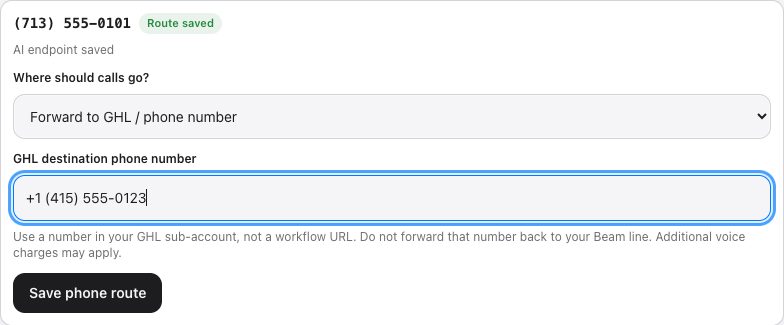
Changing the dropdown alone does not change the saved route. A successful save replaces that line's previous destination; existing routes on other lines stay unchanged. To restore an AI route, choose AI agent endpoint, paste the original secure inbound URL and save. Saved agent URLs are never displayed again.
Why not paste a GHL webhook?
This field takes a phone number, not a webhook URL. A workflow webhook receives data; it does not answer a live call. Enter the voice-enabled number from your GHL sub-account.
3. Complete a real call test
- Call the public Beam number from an external phone, not just the GHL destination directly.
- Confirm the intended GHL team or AI answers, two-way audio works, and caller ID is correct. Caller ID preservation depends on the upstream forwarding chain and must be tested.
- Confirm the call is recorded under the correct workspace in Beam and the correct contact/call history in GHL.
- Test no answer, busy, and after-hours behavior. Beam currently rings the destination for up to 25 seconds, so configure GHL answering/fallback to fit inside that window.
- Repeat with a second call. A saved route or a passing software test is not evidence of handset audio or GHL logging.
Forwarding adds a telephone call leg; voice usage charges may apply. It does not automatically synchronize recordings, transcripts, or workflow actions between products. Configure any required follow-up inside GHL.
Official HighLevel references
- Set up inbound call flow for Voice AI
- Phone number configuration options
- Twilio webhook setup and account requirements
Troubleshooting
If GHL answers directly but not through Beam, check that you saved the destination on the correct Beam line. Give support the Beam number, call time, and what happened. Never send login credentials.