Connect your CRM
Keep contacts, calendars, and one-to-one messages connected to Beam without splitting the conversation.
What you are building
When a lead opts in, your workflow calls Beam. Beam checks their phone, sends the right kind of message from your number, and tags the contact so the rest of your automation knows what happened.
| Tag | When it appears |
|---|---|
imessage-sent | The first blue-bubble message went out. |
beam-sms-sent | The lead's phone does not support blue bubbles, so a text went out instead. |
imessage-replied | The lead replied. This is your hottest signal. Trigger your AI call here. |
Part 1: connect contacts and calendars
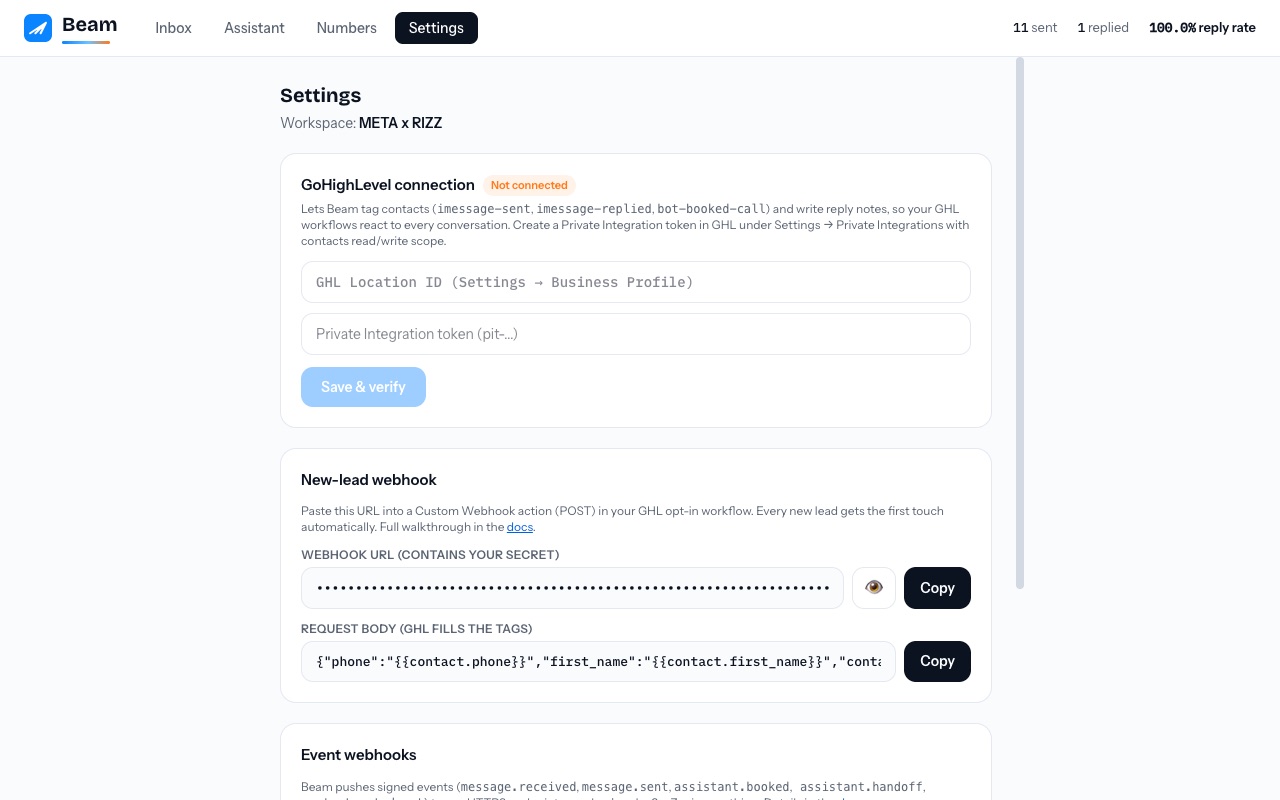
Open the client account
Copy its account or location ID from the CRM's business settings.
Create a restricted credential
Give it only the contact and calendar permissions Beam needs. Enter it in Beam Settings; it is encrypted and is never shown again.
Save and verify
Beam checks the live account before showing Connected. A stored credential without a successful read-back stays Not connected.
Part 2: let the team reply from the CRM inbox
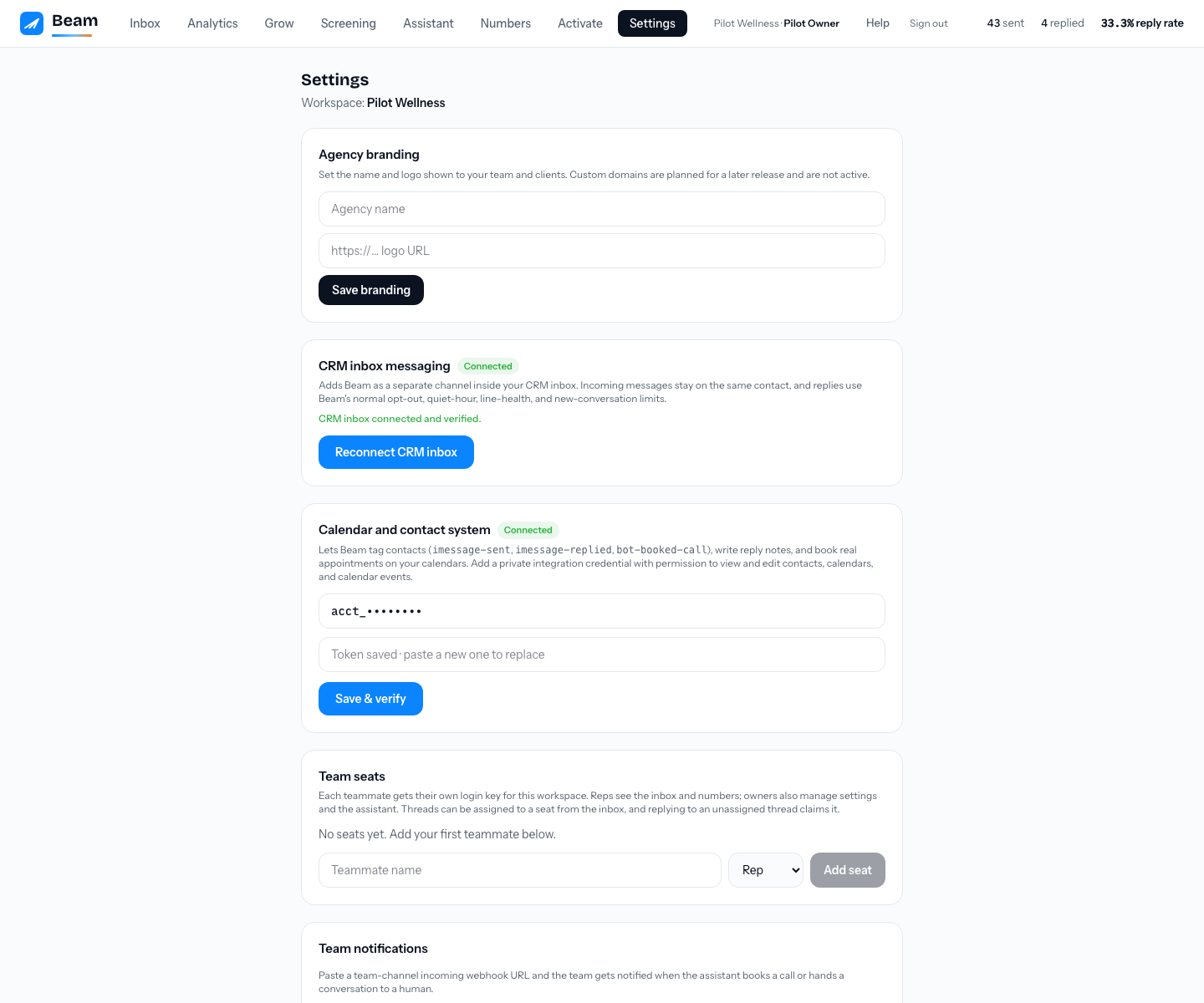
Click Connect CRM inbox
Use the secure installation screen to choose this client account. No password or token is pasted into chat or exposed in the browser.
Choose the Beam channel in a conversation
Beam appears as an additional inbox channel. The CRM's existing phone workflows remain separate and unchanged.
Run the same-contact test
Text the Beam line from an authorized test phone, then reply from the CRM. Both directions must stay on one CRM contact and the same Beam conversation.
Part 3: wire the lead flow
For follow-ups or custom text at any workflow step, use Send from GHL workflows. The opt-in example below sends only the configured first introduction and skips already-contacted leads.
Copy your webhook URL from Beam Settings
It is unique to your workspace and carries its own secret. One click copies it.
Open your CRM opt-in workflow
Use the workflow that fires when a new lead comes in (form submitted, survey completed, or contact created).
Add a Custom Webhook action
Method POST, paste the URL, and map the request body below to your CRM contact fields.
Save and test with your own number
Run one test contact with your own phone. You should get a message within a few minutes and see the imessage-sent tag appear on the contact.
https://beam.aisync.link/t/YOUR_WORKSPACE/optin?secret=YOUR_WEBHOOK_SECRET
{
  "phone": "{{contact.phone}}",
  "first_name": "{{contact.first_name}}",
  "contact_id": "{{contact.id}}"
}React to replies
Build a second workflow triggered by the imessage-replied tag. This is where results compound: start your voice workflow while the lead is already holding their phone. See Voice, paired with messaging.