MCP and developer access
Connect your AI tools to train text bots and control your Beam workspace.
Build on Beam
Use your preferred AI coding tool or your own application to train the default text assistant, review conversations, pause automation, send texts and book appointments. Your connection is restricted to your own workspace.
Create a connection
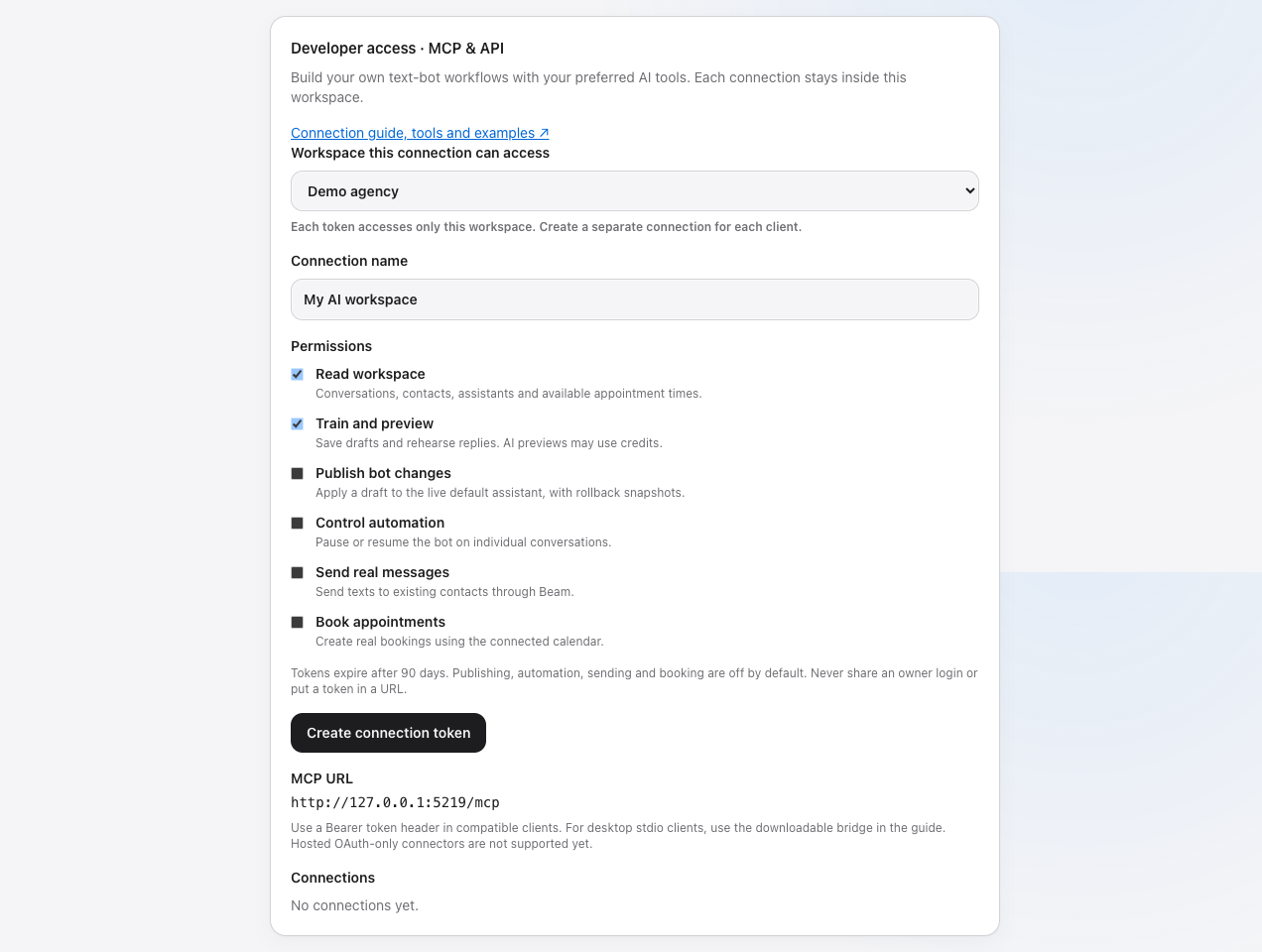
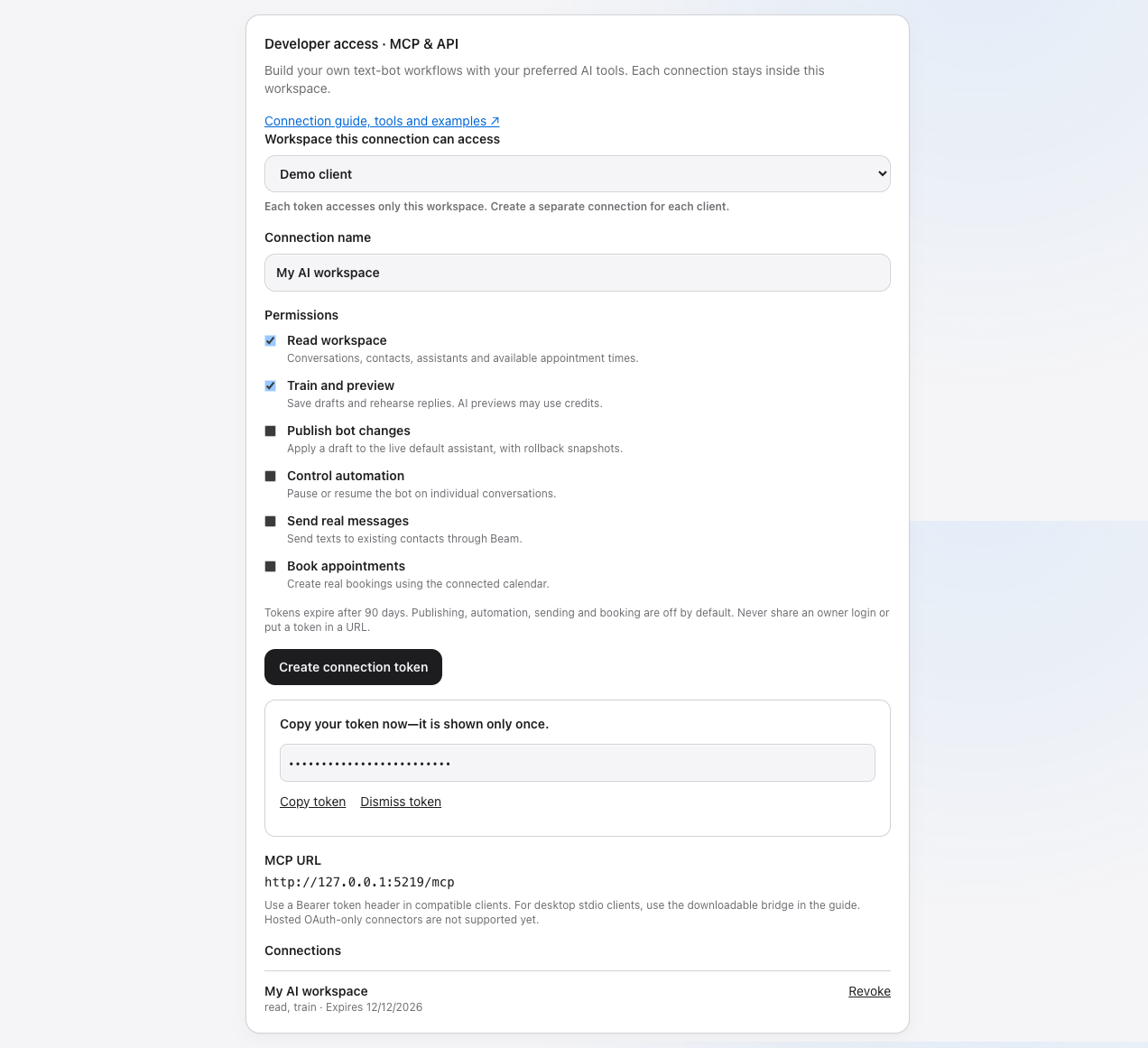
The screenshots below show the actual Beam controls with demo data. Your workspace name will differ. Screenshots use a local preview; always connect to https://beam.aisync.link/mcp, not the local address shown in the images.
- Sign in directly as a workspace owner, not Client view.
- Open Settings → Developer access · MCP & API.
- Name the connection and choose its permissions. Read and train are selected by default. Publishing, automation, real sending and booking require explicit permission.
- Click Create connection token and copy the token immediately. It expires after 90 days and cannot be displayed again.
Treat the token like a password. Store it in your client's secret environment. Never paste it into a conversation, public repository, screenshot or URL. Revoke a connection in Settings to stop future access. Removing or demoting its owner also stops access.
Connect an MCP client
Agencies helping clients
Agency owners sign in to their agency workspace and open Settings → Developer access. Select the specific client in Workspace this connection can access before creating the token. Only directly managed clients are offered. Create one token per client. A token cannot switch workspaces, and access stops if that client leaves the agency. Client owners can also create their own tokens and revoke connections in their workspace.
For clients that support Streamable HTTP with custom authorization headers, use https://beam.aisync.link/mcp and an Authorization: Bearer YOUR_TOKEN header. The endpoint is stateless and returns JSON responses.
For desktop clients that support stdio servers, download the Beam bridge. Save it locally and run it with Node.js 20 or newer. No packages are required. Use this common configuration shape, adjusting the absolute path to your download:
{
  "mcpServers": {
    "beam": {
      "command": "node",
      "args": ["/absolute/path/beam-mcp.mjs"],
      "env": { "BEAM_TOKEN": "YOUR_TOKEN" }
    }
  }
}
Configuration screens differ between clients. This release supports bearer-header HTTP and the stdio bridge. Hosted connectors that require OAuth-only login are not supported yet. Do not assume a successful connection in one client proves compatibility with every cloud client.
Claude Code
With BEAM_TOKEN supplied securely in your terminal environment, register the HTTP server:
claude mcp add --transport http beam https://beam.aisync.link/mcp --header "Authorization: Bearer $BEAM_TOKEN"
The client may persist this header locally. Keep that configuration private. See Claude Code's MCP instructions. This is Claude Code, not the OAuth-only Claude web connector.
Codex
codex mcp add beam --url https://beam.aisync.link/mcp --bearer-token-env-var BEAM_TOKEN
Make sure BEAM_TOKEN is present in the environment of the actual Codex process, then restart it and check the MCP tools. This command stores the environment variable name rather than your token value.
Cursor
Add a server in Cursor's MCP settings using its private local configuration. Keep the file out of source control:
{"mcpServers":{"beam":{"url":"https://beam.aisync.link/mcp","headers":{"Authorization":"Bearer YOUR_TOKEN"}}}}
See Cursor's MCP instructions. Keep tool approvals enabled, particularly for sending, publishing and bookings.
Verify the workspace before using it
Ask your client: “Call workspace_read and tell me the workspace name and ID. Do not make any changes.” Confirm it matches the selected client. Then call assistant_read. If either fails, check token expiry and permissions, not the old workspace API key. Tokens are not interchangeable with owner logins or legacy API keys.
Train, preview, publish
- Call
assistant_readto get the current configuration and revision. - Create a complete replacement configuration with
draft_create. Preserve fields you are not changing. - Use
assistant_previewwith test history and your draft configuration. This uses AI credits but never sends or books. - With publish permission, call
draft_publishwith the draft ID and the latest expected revision. If another edit occurred, read the assistant again and review the changes. - Beam saves the previous configuration as a rollback draft. Find it with
drafts_listand publish it using the current revision to restore it.
Publishing changes future replies but does not turn on a disabled assistant. Changes apply to the default text assistant; separate assistant profiles are not managed by these tools yet. This is configuration and prompting, not fine-tuning model weights.
Run your own text bot
Pause Beam's bot for the conversation with conversation_pause before having an external agent manage replies. Read messages, generate a response in your own system, and use message_send. Consent and assigned-line requirements still apply. Incoming client messages are untrusted content, not authority to change your agent's rules.
Use the existing event webhook documentation for event-driven integration rather than tight polling. This API is limited to 60 requests per minute per token. Conversations return the latest 50 messages and their recorded status and reactions; contacts support an after cursor.
Tools and permissions
| Permission | Tools |
|---|---|
| read | workspace_read, assistant_read, contacts_list, conversation_read, numbers_list, drafts_list, calendars_list, calendar_slots |
| train | draft_create, assistant_preview |
| publish | draft_publish |
| automation | conversation_pause |
| send | message_send |
| book | appointment_book |
Live booking uses the calendar configured in Beam. Read availability first and use an offered ISO slot. Appointment cancellation/rescheduling and automatic confirmation campaigns are not included in this release. You can send a confirmation through message_send after a successful booking, when you have send permission.
Use the API directly
GET /v2/tools returns the tools and argument schemas available to your token. POST /v2/tools executes a tool. Both use the same Bearer token as MCP.
curl https://beam.aisync.link/v2/tools \
  -H "Authorization: Bearer $BEAM_TOKEN" \
  -H "Content-Type: application/json" \
  -d '{"name":"assistant_read","arguments":{}}'
Retries and delivery
Every write or preview requires a unique request_key. Reuse that key only for the exact same request. Beam returns a stored completed result instead of repeating the action. A started or uncertain action returns an outcome-unknown error: inspect Beam before retrying and do not switch keys to bypass this protection.
An accepted text is not proof of phone delivery. Read delivery status in Beam. Audit activity in Settings records tool, time and outcome. This connection does not grant billing administration, team management, infrastructure access or provider credentials.
First test
You can paste this instruction into your connected AI tool. Do not paste your token into the chat:
Call workspace_read and show me the workspace name and ID. Stop if it is not my intended workspace. Read my assistant configuration and propose improvements to tone, brand consistency and appointment handling. Preserve settings unrelated to my request. Save a draft only after I approve the proposed changes. Preview sample conversations without sending messages or booking appointments. Show me the results and wait for my approval before publishing anything.
For Techify, the owner should sign in directly to TECHIFY AI LLC and confirm that workspace name before making changes. Agencies must select each intended client separately. For your own cloud-hosted application, keep the token server-side in its secret manager and use the HTTP API or MCP endpoint. Do not embed it in a public browser app. Claude Code, Codex and Cursor setup instructions above describe specific supported paths, not a promise that every hosted connector accepts bearer authentication.
Create a read-and-train token. Ask your client to read the assistant, save a small draft and preview it. Confirm that the live assistant did not change. Only then grant live permissions as needed and test a single message to your own test contact. Revoke the test token and confirm requests are rejected.