The Assistant
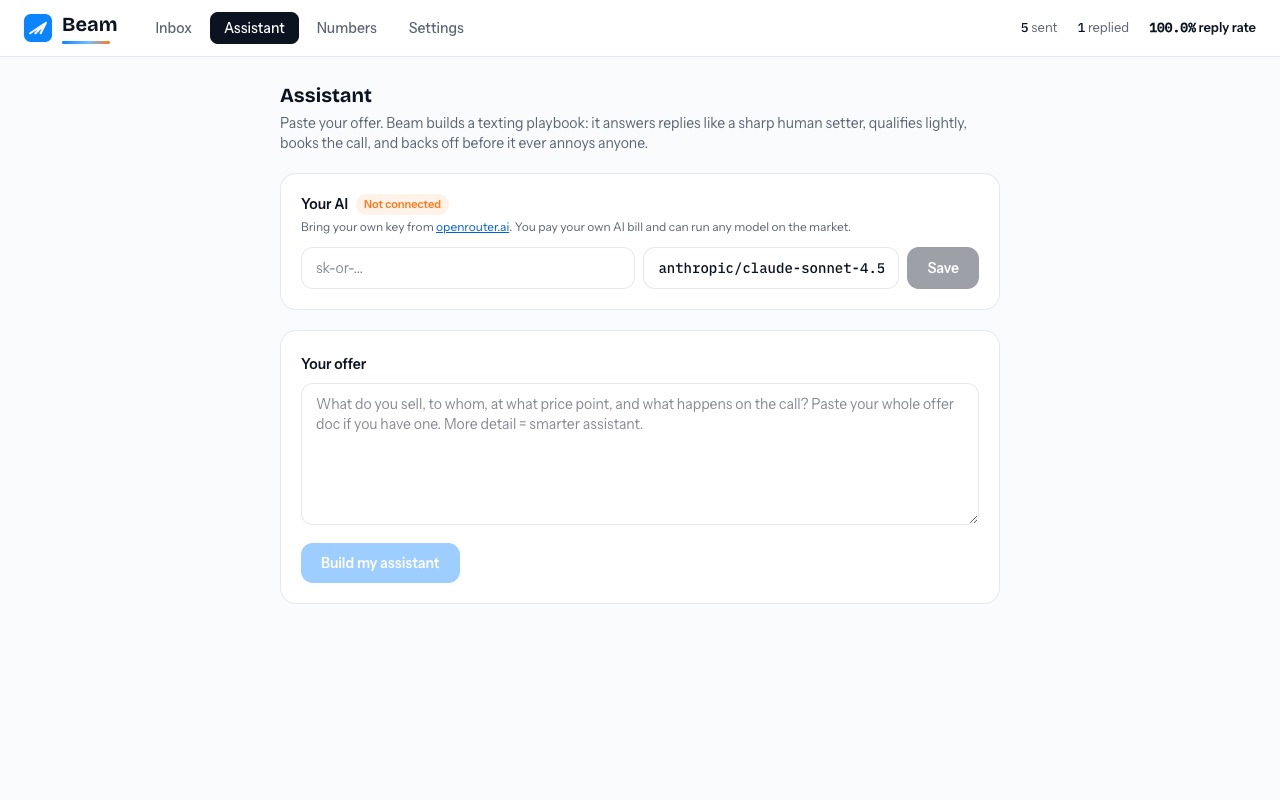
A practical, safe guide for owners and teams to train one Beam assistant for text and email before it speaks to a real lead.
Who does what
| Person | What they do |
|---|---|
| Workspace owner | Connects the AI account, adds business context, chooses the calendar and safety policy, tests it, then approves live behavior. |
| Team member | Works conversations in Inbox, takes over when context or judgement is needed, and adds coaching feedback when a reply needs improvement. |
| Client | Reviews the assistant's tone and business facts in their own workspace. They never need access to another client's data or your AI account. |
Setup, in the order that works
1. Connect your OpenRouter account
In Assistant, paste an OpenRouter API key and select a model. The key is used server-side for your workspace and is never shown back to your team. OpenRouter usage remains on your own account.
2. Explain the business like you would to a new hire
Describe what you sell, who buys it, typical price range, what makes a lead a fit, what happens next, and what must never be promised. Beam creates a starting playbook: a persona, qualification questions, common objections, and a booking approach. Review it before you go live.
3. Add owner rules in plain language
Use House Rules for business-specific corrections such as “Do not quote pricing until you know what service they need” or “Hand off all cancellation requests.” Rules apply to both text and email. Test every important rule in the Playground.
4. Pick the calendar and handoff conditions
Choose the real calendar the assistant may use. Add the situations where it must stop and hand a conversation to a person, such as legal questions, refunds, unusual pricing, or an angry customer.
5. Test before enabling
Use the Playground's Text and Email tabs. Try a price question, a request for a human, a booking request, and an objection. It is a rehearsal only: it cannot send, queue, or create an appointment.
6. Start with drafts
For email, choose Draft only first. Review a few real drafts in Inbox. Enable live assistant behavior only after the owner is satisfied with the tests and the team knows when to take over.
How the Playground works
The Playground uses the workspace's actual playbook and active House Rules. Choose Text to see message bubbles or Email to see a threaded email draft. Type as a customer or start from a common scenario. Each simulated inbound can produce at most one assistant reply, and the result is never delivered to a contact.
How it sells
- Uses the right format for the channel. Text replies are brief and conversational. Email replies use short, useful paragraphs and retain the email subject and thread context.
- Books like a closer. Frames the call as valuable, proposes two concrete time windows, confirms the exact day and time in the lead's own words. Never sends a calendar link.
- Never books the wrong day. A live clock rides along with every reply, the #1 failure of the bots you've used before.
- Knows when to stop. An angry lead, legal topic, refund decision, stop request, or human takeover pauses assistant activity for that conversation. Your team can take the wheel from Inbox at any time.
Real calendar booking
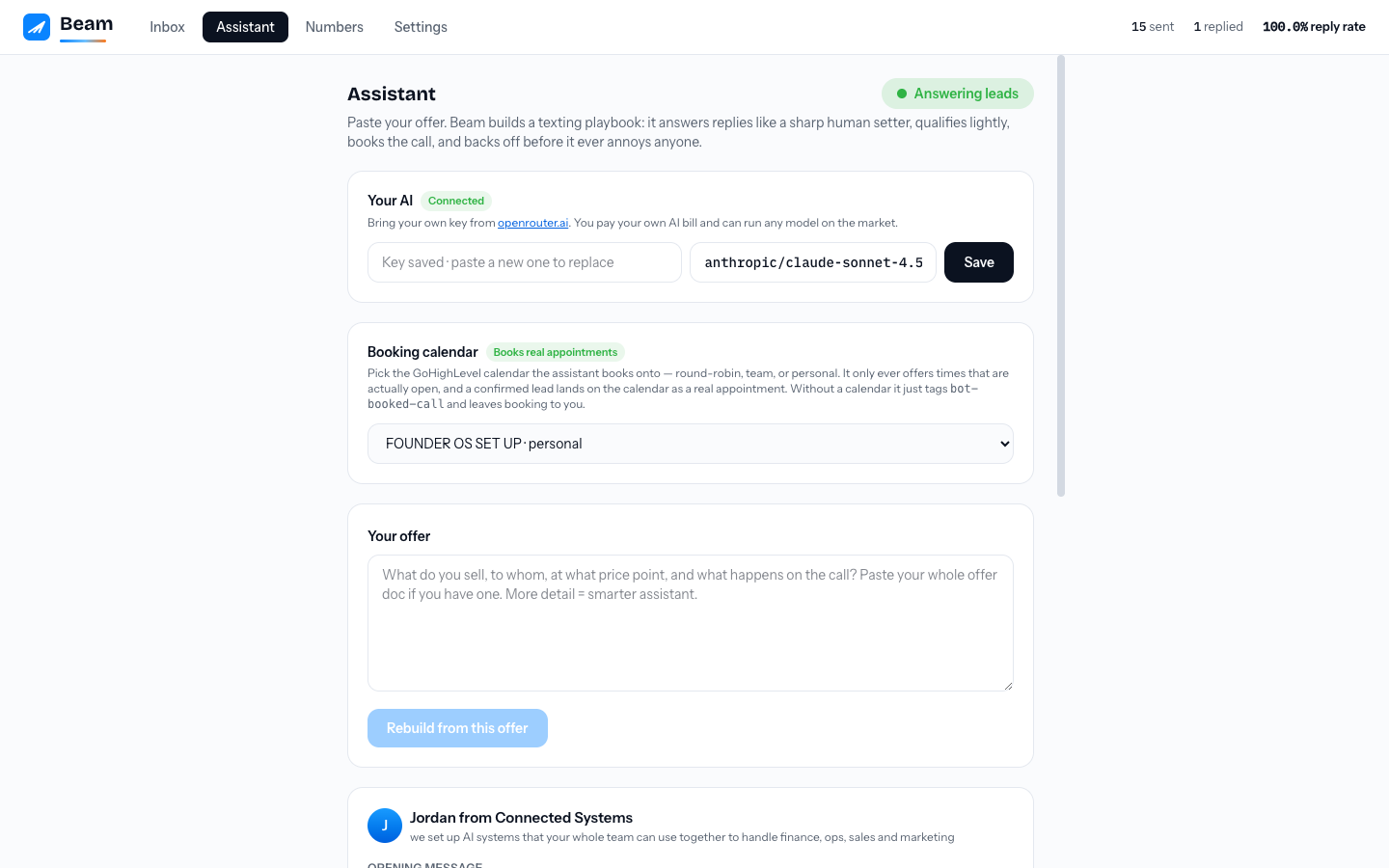
Pick a booking calendar in the Assistant tab (any calendar in your connected CRM: round-robin, team, or personal) and the assistant becomes a true setter:
- It only offers times that are actually open. Before every reply it reads the calendar's live availability for the next six days and proposes two real windows in natural words.
- Agreement creates a real appointment. The moment the lead commits to a time, the appointment lands on the calendar, confirmed, with the contact attached. Round-robin calendars distribute it across your team automatically.
- It never claims a booking it didn't make. The thread is only marked booked after the calendar confirms the appointment. If the calendar write fails after a lead agreed, the assistant pauses itself and alerts your team to lock it in manually.
Without a calendar selected, the assistant works in tag-only mode: it confirms a window in words and tags bot-booked-call so your own workflow does the booking.
Follow-ups that do not annoy people
Automated follow-ups are off by default. An owner must deliberately enable them and choose up to three delays in hours. A reply, opt-out, handoff, or human takeover stops the sequence. Beam never treats an uncertain delivery state as permission to send the same message again.
Daily team workflow
- Work new conversations from Inbox.
- If a reply needs judgement, click takeover and reply as a human. The assistant stops on that thread.
- If the assistant's behavior needs changing, use Coach your assistant in the conversation or add a House Rule in Assistant.
- Review assistant drafts before sending until the workspace owner is comfortable with the results.
- Use the assistant only for contacts with appropriate consent and always honor opt-outs.
When it books
The appointment is on your calendar, the contact gets tagged bot-booked-call in your CRM with the agreed window in the notes, your team channel gets a notification if alerts are on, and an assistant.booked event fires to your webhooks. The loop from first text to booked call runs without a human touching it, and every message is in the inbox if you want to watch it work.